Xhorse MVCI 3 in 1 Toyota TIS Customers Feedback!
Xhorse MVCI 3 in 1 diagnoses for TOYOTA TIS. It supports most 1996 and newer Toyota, Lexus, and Scion vehicles with OBDII/DLC3 diagnostics. Some customers asked me many questions about Xhorse MVCI 3 in 1. Here are the FAQs below:
Q1: What is computer requirement of Xhorse MVCI 3 in 1?
A1: Windows OS (operating system) requiremet:Windows XP;2 CPU,2.00GB of RAM,40GB of Local Disk C.
Q2: Will MVCI do Honda immobilizer programming for PCM replacement?
A2: MVCI is mainly used to diagnose, it is unstable to program.
Q3: Does MVCI work with Acura? Does it support CAN BUS? Can it diagnose ABS, SRS and Body?
A3: We suggest you not use MVCI to diagnose Acura; the best Acura diagnostic tool is Honda HDS, GNA600 and allscanner.
Q4: When I click "MVCI firmware update tool", it always says "Unable to connect to update server", the firmware version is V1.4.1.
A4: MVCI 3 IN 1 can't update firmware, do not click "MVCI firmware update tool"; it only supports update Toyota software.
Q5: After install MVCI HDS Program on Windows XP, it can read the DTC code, but it fails to clear DTC.
A5: There are 3 possible reasons:
1) There is a poor contact between the USB interface and the computer.
2) MVCI HDS driver is not successfully installed
3) MVCI doesn’t work with your car model.
Q6: I installed MVCI HDS software, and the green light flashes, the MVCI is activated, then I click the "select car model" button, MVCI starts to test, then proceed to the window of mileage and car model selection, I go on enter the list of subsystem and choose the subsystem, no response, all the PGM light, ABS light and SRS light flash, but Honda software prompts "No communication, please check whether the key is insert or MVCI is connected"
A6: you can enter into the list of subsystem, it means MVCI can work, but it has no response after select the subsystem, it means MVCI can't work with this car model, advice you select the other car model to diagnose or advice you use Honda HDS, GNA600 to diagnose Honda, HDS and GNA600 is best Honda diagnostic tool.
Q7: Can MVCI 3 in 1 test tire pressure for Lexus RX350, year 2010? If it can’t, would you please recommend one for me?
A7: MVCI 3 in 1 can't test tire pressure for Lexus RX350, year 2010, advice you use Autel MaxiTPMS® TS401 TPMS Diagnostic and Service Tool.
Note:a.Be sure to disable/uninstall anti-virus software;
b.Required windows operation system is Windows XP.
2016年7月26日星期二

2016年7月25日星期一
BMW ICOM vs. SVDI, which one is suit for your car?
BMW ICOM vs. SVDI, which one is suit for your car?
Referring to car diagnostic tool, we know BMW ICOM and SVDI. They are popular among engineers. SVDI VAG Commander is the newest car diagnostic adapter for VW/AUDI. It supports multi-languges. BMW ICOM is with latest Software, Adapter and WIFI . It is Second generation of BMW ISTA Diagnose and programming system.
How to choose a suitable car diagnostic tool for your car? Here is comparison between them below:
Referring to car diagnostic tool, we know BMW ICOM and SVDI. They are popular among engineers. SVDI VAG Commander is the newest car diagnostic adapter for VW/AUDI. It supports multi-languges. BMW ICOM is with latest Software, Adapter and WIFI . It is Second generation of BMW ISTA Diagnose and programming system.
How to choose a suitable car diagnostic tool for your car? Here is comparison between them below:
Item No.
|
TSS-0007
|
TSS-0114
|
Item Name
|
SVDI Diagnostic Interface
| |
Software Version
|
V2015.3
 |
VW, Audi, Skoda, Seat: V18
BMW: V9.6
TAG key tool: V5.8
SVDI Plugin Version: V2.3
 |
Support Languages
|
English, German, Spanish, French, Italian, Polish, Portuguese, Turkish, Czech, Swedish, Dutch, Indian, Greek, Russian, Chinese, Japanese, Korean and Thai.
|
VW, Audi, Skoda, Seat Software Language Available: English, Simplified Chinese, German, Spanish, French, Russian, Italian, Danish, Czech, Bulgarian
TAG Key Tool Software Language Available: English
|
Support Car Model
|
BMW
|
VW,Audi,Skoda,Seat,BMW,TAG
|
Update
|
Dual-Core Processor, it is recommended that the I3 above.More than 4G of memory.Lenovo ThinkPad X200, X230, X230T, X61T, T410, X61,Dell D630, E49 etc
|
Send Software download link
|
Main Fuction
|
BMW testing and program, can not program key and ecu
|
VW,Audi,Skoda,Seat,BMW,TAG read error code,diagnose
|
Difference
|
BMW ICOM is original maintain programming diagnose tool,full functions, it can support part of SVDI function.
| |
2016年7月24日星期日
I successfully installed and activated Vpecker Easydiag Wireless Scanner Software
I successfully installed and activated Vpecker Easydiag Wireless Scanner Software
Vpecker Easydiag Wireless Scanner supports total 85 brand vehicle from European, Aisan, American, contain lots of Chinese vehicle brand and Multi-language. It can be used for customer from different country. I installed and activated Vpecker Easydiag Wireless Diagnostic Tool Software successfully.
Here are the steps of Vpecker Easydiag Wireless Scanner Software installation:
1.I unzipped successfully Vpecker setup V4.11.zip and run Vpecker setup.exe:
 2.I changed the path to install the software, then clicked "Next".

 3.I clicked "Install".
 4.Vpecker wireless diagnostic service system installed successfully.


1.I kept network working and run VPECKER APP, then I clicked "Online store" to get applications.

 2.I entered the S/N number and password got from the envelope, and then clicked "Login".


 3.If the product was not activated, please clicked "Yes".

4.I input my information, the E-mail address and country were required, then I clicked "Activate".
 5.I pressed "Yes" to confirm my information.
 6.I clicked the link to get the information from the manufacturer.


Vpecker Easydiag Wireless Scanner supports total 85 brand vehicle from European, Aisan, American, contain lots of Chinese vehicle brand and Multi-language. It can be used for customer from different country. I installed and activated Vpecker Easydiag Wireless Diagnostic Tool Software successfully.
Here are the steps of Vpecker Easydiag Wireless Scanner Software installation:
1.I unzipped successfully Vpecker setup V4.11.zip and run Vpecker setup.exe:


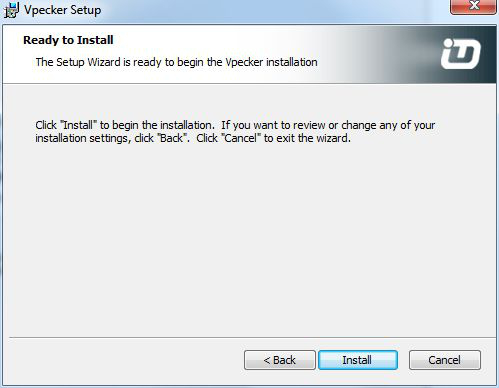


Follow the procedures of Vpecker Easydiag Wireless Scanner Software Activation:
1.I kept network working and run VPECKER APP, then I clicked "Online store" to get applications.


4.I input my information, the E-mail address and country were required, then I clicked "Activate".


I installed and activated Vpecker Easydiag Wireless Diagnostic Tool Software successfully.
2016年7月22日星期五
How to Distinguish CN900 from ND900 and Hand Baby?
How to Distinguish CN900 from ND900 and Hand Baby?
When referring to auto key programmer tool, we all know CN900, ND900 and Hand Baby key programmer. They are popular auto key programmer tool in European market. However, what are differences between them? Now you should know it more clearly. Here is the comparison form of CN900, ND900 and Hand Baby key programmer.
When referring to auto key programmer tool, we all know CN900, ND900 and Hand Baby key programmer. They are popular auto key programmer tool in European market. However, what are differences between them? Now you should know it more clearly. Here is the comparison form of CN900, ND900 and Hand Baby key programmer.
Item No.
|
TSS-0154
|
TSS-0212
|
TSS-0160
|
Item Name
| |||
Update
|
Online
|
Online
|
Online
|
Language
|
English
|
English
|
English, Spanish and Chinese
|
Operate Way
|
Handheld
| ||
Copy 4C Chip
|
Yes, use CN1
|
Yes,use particular designed 4D/4C Chip
| |
Copy 4D Chip
|
Yes, need work with CN900 4D decoder, use CN2
|
Yes, need work with ND900 4D decoder, use CN2
|
Yes,use particular designed 4D/4C Chip
|
Copy 46 Chip
|
Yes,need to work with CN900 46 decoder, use CN3
|
Yes,need to work with ND900 46 decoder, use CN3
|
Yes, use handy baby ID46 chip
|
Toyota G chip
|
Yes,need to work with G box of CN900, use CN5 Toyota G Chip
|
Yes,need to work with G box of ND900, use CN5 Toyota G Chip
|
Yes, need to open G function authorization, use Handy Baby G chip
|


In conclusion, Handy Baby key programmer can repalce CN900/ND900, and those three key programmers have the same function. Which one would you like to choose depends on your hobies.
2016年7月21日星期四
How to Fix CN900 Screen Became Black and White?
How to Fix CN900 Screen Became Black and White?
New CN900 key copy machine is a new Auto transponder chip key copy machine, using 3.6-inch TFT LCD display, touch screen operation. CN900 key copy machine supports directly copy 4C and 4D chips. It can copy Toyota 4d67. A customer told me that his CN900 screen became black and white and he did not know how to solve the problem.
Here are the screenshots below:
 Now please follow me by the below ways to fix it:
1. First you should connect CN900 with computer and power by USB wire.
2. Next you need to go to CN900 official website: www.cn900.net and download : CN900_LOADER V3.10
3. You'd better click , then it will appear follow picture. You will see in front of "Fast" there marked hook.
 4. You should remove the Hook in front of "Fast".
 5. After you remove the Hook in front of "Fast", then you need to press "Update" button. After then CN900 will update with computer together.
 6. After CN900 finished update with computer, then it will recover as follow:
 Remark 1:If updating one time, the CN900 still does not recover,then you should try as above ways again and again till it recovers.
Remark 2: If during updating CN900, it appears a window which need you choose "COM" port. Then you need to choose a correct "COM" port. If you do not know which is correct COM port, then you'd better operate as follow steps:
a. You need to right click my computer and choose property.
b. You'd better choose "Hardware".
c. You should choose device manager.
d. You need to find port(COM and LPT) and click, then will see following ports:
 And then you should take CN900 USB wire out from computer,then check the port(COM and LPT) again:
 You need to check the difference between connect with CN900 USB wire with computer and take out CN900 USB wire from Computer:
 Then you will see when connect with CN900 USB wire with computer then will see the below message:"
 ".
".
After you take out CN900 USB wire from computer, then " " will disappear. So you need to choose "
 ".
".
Notice: When choose COM port not must be "". Different computer have different case. It depends on that when you connect CN900 USB wire with computer and take out USB wire from computer which port (COM) will appear and disappear, therefore that port (COM ) you need to choose.
New CN900 key copy machine is a new Auto transponder chip key copy machine, using 3.6-inch TFT LCD display, touch screen operation. CN900 key copy machine supports directly copy 4C and 4D chips. It can copy Toyota 4d67. A customer told me that his CN900 screen became black and white and he did not know how to solve the problem.
Here are the screenshots below:

1. First you should connect CN900 with computer and power by USB wire.
2. Next you need to go to CN900 official website: www.cn900.net and download : CN900_LOADER V3.10
3. You'd better click
, then it will appear follow picture. You will see in front of "Fast" there marked hook.


Remark 2: If during updating CN900, it appears a window which need you choose "COM" port. Then you need to choose a correct "COM" port. If you do not know which is correct COM port, then you'd better operate as follow steps:
a. You need to right click my computer and choose property.
b. You'd better choose "Hardware".
c. You should choose device manager.
d. You need to find port(COM and LPT) and click, then will see following ports:


 ".
".After you take out CN900 USB wire from computer, then "
" will disappear. So you need to choose "".Notice: When choose COM port not must be "
". Different computer have different case. It depends on that when you connect CN900 USB wire with computer and take out USB wire from computer which port (COM) will appear and disappear, therefore that port (COM ) you need to choose.
MB SD C5 Star Diagnosis with WIFI Updated to V2016.7 On Sale!
MB SD C5 Star Diagnosis with WIFI Updated to V2016.7 On Sale!
MB SD Connect Compact 5 has the same function as SD C4 but with new design . It supports both cars and trucks and supports wireless connection. Do you know the MB SD C5 has updated to V2016.7. Many customers would like to buy it. Why is it so popular? Here are the reasons below:
Highlights of MB SD C5 Star:
1.Newest Version:V2016.7.
2.Supported Multi-Language: English/Bulgarian/Danish/Greek/Spanish/French/Italian/Korean/Polish/Romanuan/Serbo-Croatian/Turkish/Czech/German/Finish/Hyngarian/Japanese/Dutch/Portuguese/ Russian/Swedish/Chinese.
3.Support Mercedes Benz Cars After Year 2000.
4.Support Online Programming.
New Features of MB SD C5 Compact 5:
1. New MB SD Connect Compact 5 Star Diagnosis support wireless diagnose;
2. New MB SD Connect Compact 5 Star Diagnosis not only support K line diagnose and CAN BUS,but also UDS diagnose protocol. Because old MB STAR C4 main board do not have UDS chip, so old MB STAR C4 can not support it;
3. Multiplexer now use Lan cable to connect;
4. Connector adopt Military quick swap technology, it can support 10,000 times pull plug, more stable;
5. All core accosseries adopt original new packing chip, and 24 hours test, guarantee the quality of the products.

MB SD Connect Compact 5 has the same function as SD C4 but with new design . It supports both cars and trucks and supports wireless connection. Do you know the MB SD C5 has updated to V2016.7. Many customers would like to buy it. Why is it so popular? Here are the reasons below:
Highlights of MB SD C5 Star:
1.Newest Version:V2016.7.
2.Supported Multi-Language: English/Bulgarian/Danish/Greek/Spanish/French/Italian/Korean/Polish/Romanuan/Serbo-Croatian/Turkish/Czech/German/Finish/Hyngarian/Japanese/Dutch/Portuguese/ Russian/Swedish/Chinese.
3.Support Mercedes Benz Cars After Year 2000.
4.Support Online Programming.
New Features of MB SD C5 Compact 5:
1. New MB SD Connect Compact 5 Star Diagnosis support wireless diagnose;
2. New MB SD Connect Compact 5 Star Diagnosis not only support K line diagnose and CAN BUS,but also UDS diagnose protocol. Because old MB STAR C4 main board do not have UDS chip, so old MB STAR C4 can not support it;
3. Multiplexer now use Lan cable to connect;
4. Connector adopt Military quick swap technology, it can support 10,000 times pull plug, more stable;
5. All core accosseries adopt original new packing chip, and 24 hours test, guarantee the quality of the products.

2016年7月20日星期三
How to Make/Prepare Dealer Key with BMW Multi Tool V7.7?
How to Make/Prepare Dealer Key with BMW Multi Tool V7.7?
BMW Multi Tool V7.7 Best BMW CAS Key Programmer, powerful than BMW AK300. BMW Multi Tool V7.7 supports key programming for BMW CAS1 CAS2 CAS3 CAS3+ CAS4 till year 2014 via OBD2 port directly. BMW Multi Tool updates frequently and has more new functions. Authorization will be add freely. Here is the instruction about how to make/prepare dealer key with BMW Multi Tool V7.7 below.
At first, you should connect BMW Multi Tool V7.7 with the computer in a correct way.
 1).On the BMW multi tool interface, you need to choose "Connect" to auto detect the current car protocol and get the CAS info.
2).You'd better choose "Read EEPROM" to read the CAS EEPROM file and save it.
3).You need to choose "Key Learn" to get key learn interface.
4).You should choose "Get Key Info" to get the key info stored in CAS system.
 5).You'd better to choose "Save Key Info" to save the read key info for backup.
6).You should check the connection between BMW multi tool programmer and device and keep connection while making key process.
7).You need to put new blank key into the center of programmer.
8).You'd better choose the position where you want to suit for the key.
9).You must press "Make Dealer Key" to prepare dealer key. After succeed you will get "Key make okay and locked. Please use it start the car. If can’t start engine, use "Add Key" function add the new dealer key to CAS system". Once it can start the engine, you'd better go to step 13.
 10).You need to put the new dealer key into BMW Multi Tool. You should use "Add Key" function to add the key to CAS system. After that you will get "New dealer key success written to CAS system. You can start engine with the new key now. If can’t please use the original working key first".

12).You can use "Synch CAS-ELV" to clear wheel errors.
13).You'd better enter to key learn window use "Clear DTC" and "Clear Shadow" function clear all errors.
Note:a.The dealer key should be taken away from ignition switch;
b.If key is keyless, please move it out of the car;
c.Press OK to continue.
BMW Multi Tool V7.7 Best BMW CAS Key Programmer, powerful than BMW AK300. BMW Multi Tool V7.7 supports key programming for BMW CAS1 CAS2 CAS3 CAS3+ CAS4 till year 2014 via OBD2 port directly. BMW Multi Tool updates frequently and has more new functions. Authorization will be add freely. Here is the instruction about how to make/prepare dealer key with BMW Multi Tool V7.7 below.
At first, you should connect BMW Multi Tool V7.7 with the computer in a correct way.

2).You'd better choose "Read EEPROM" to read the CAS EEPROM file and save it.
3).You need to choose "Key Learn" to get key learn interface.
4).You should choose "Get Key Info" to get the key info stored in CAS system.

6).You should check the connection between BMW multi tool programmer and device and keep connection while making key process.
7).You need to put new blank key into the center of programmer.
8).You'd better choose the position where you want to suit for the key.
9).You must press "Make Dealer Key" to prepare dealer key. After succeed you will get "Key make okay and locked. Please use it start the car. If can’t start engine, use "Add Key" function add the new dealer key to CAS system". Once it can start the engine, you'd better go to step 13.


11).You should return to main window and use function "Synch DME-CAS" to synchronize DME (ECU) with CAS.
13).You'd better enter to key learn window use "Clear DTC" and "Clear Shadow" function clear all errors.
Note:a.The dealer key should be taken away from ignition switch;
b.If key is keyless, please move it out of the car;
c.Press OK to continue.
订阅:
博文 (Atom)